


Registering Passkeys for MFA

Sep 03, 2026
32

Why Use a Passkey?
Passkeys provide a secure, phishing-resistant sign-in method and reduce the need for passwords and MFA prompts.
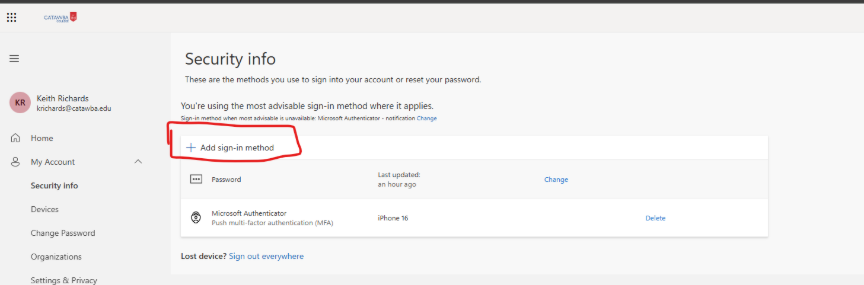
Step 1: Open Security Info
Go to https://mysignins.microsoft.com/security-info and sign in with your Microsoft 365 account.
Step 2: Add a Passkey
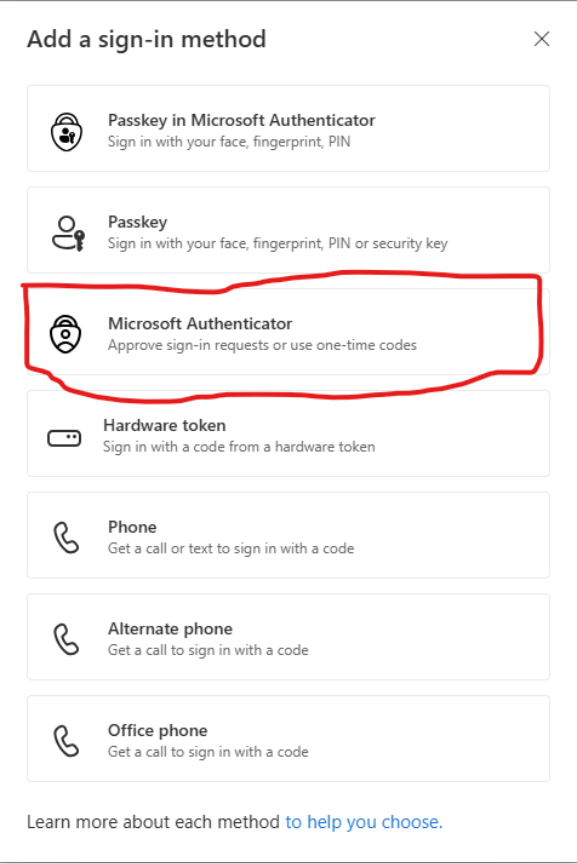
Select Add sign-in method and choose Passkey. Follow the prompts to store the passkey in Microsoft Authenticator
.
Step 3: Complete Registration
Use your fingerprint, face recognition, or device PIN when prompted.
Step 4: Test Sign-In
Sign out of Microsoft 365 and sign back in using your passkey.

