


This article will show you how to upload files to OneDrive either on the Web, using Windows or Mac.
Web Upload:
1. Go to the following link and log in using your Catawba Email. https://onedrive.live.com/login
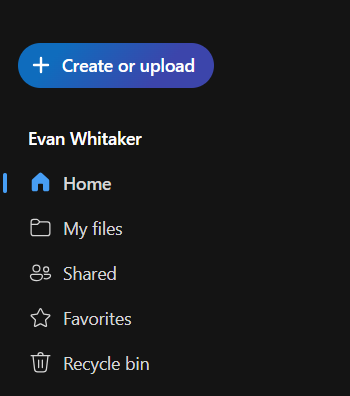
2. Once logged in, click the create or upload button.
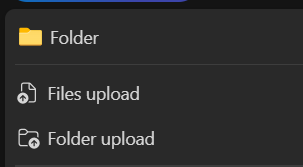
3. Click Files Upload and choose the file you want to add. It should upload and be saved shortly after.
Windows:
1. If you have the OneDrive app installed, find the blue cloud icon next to the hidden icons arrow. "If it isn't there right away, you may need to search OneDrive in the search bar on the task bar. It should prompt you to sign in or sign in automatically."

2. Click the Open Folder button and it should open the OneDrive location in your File Explorer.

3. You should then be able to click and drag or copy files over to that location.
*You can always check the web version of OneDrive to verify if files have properly synced
Mac:
If you have the OneDrive app installed you should have a OneDrive folder in Finder. Locate that, click and drag or copy over the files you want and they should be backed up. *Copying over and verifying the files look how they are supposed to is the safer and recommended option*
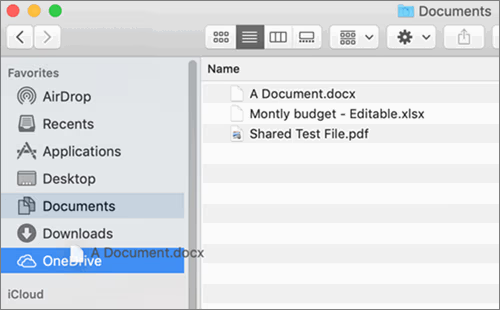
*You can always check the web version of OneDrive or the cloud icon at the top of your desktop to verify if files have properly synced*
As always, if you run into any issues, feel free to reach out to the IT Helpdesk by either emailing [email protected] or calling us at (704) 637-4666 and one of our IT Support Specialist can assist you further.

