


In this article, you will learn how to connect your Dell wireless keyboard via Bluetooth. Disclaimer: This will not apply if your keyboard is connected via the USB Dongle. Your keyboard should be set to 1 to use this setting.
If your keyboard does not have a USB Dongle, please proceed with the instructions to connect it via Bluetooth.
Step 1. Make sure your keyboard is on the 2 or 3 setting.
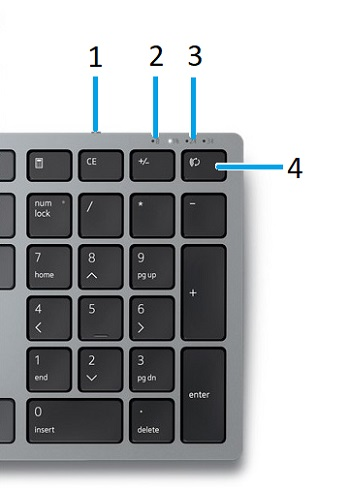
Bluetooth settings are on the numbers 2 and 3 for a Dell Keyboard. Using the button highlighted in the photo below (line 4), make sure the indicator light is to the left of either 2 or 3 (Line 3)before continuing.
Step 2. Navigate to Bluetooth and Device settings to Add the Keyboard.
Go to the search bar on your task bar and search Settings. Then click Bluetooth and Devices. You'll then click the Square with Add and a plus sign in it.
Step 3. Make the computer discoverable.
Press and hold the button referenced in the picture for step one (Line 4) until the indicator light starts blinking. It should now be discoverable to other devices.
Step 4. Add the keyboard to your computer.
Back on the computer, click the Bluetooth option then find Dell Keybd. Click that, then it should display a six digit code. Type that in using the numpad and then press Enter. Once that is done it should connect shortly after that.
As always, if you require further assistance or issues not covered here or in any other article, you can reach out via email to [email protected] or call (704) 637-4666 and one of our Support Specialist's will help you.

